Saturday, 25 August 2012

Adding HTML control dynamically using JQuery

In this article I will explain how to add HTML control dynamically using jQuery and then retrieve values from the dynamically generated controls.

You have seen many website where you find provision to add multiple mobile numbers, interests, subject or some other type of data by clicking Add button (this add new row with required fields).

In many websites this is done using Ajax ( i.e. control generated on server side and then rendered asynchronously on the client browser). The drawback of this is every time async postback happen to server and this overhead, also in some website the browser become very slow in cases it hang as well after 15-20 postbacks.

Well in jquery it is wery simple just by using appent method you can add the new DOM element inside existing DOM element like <div>.

Code to add HTML control

HTML:

<div id="mynewDiv" style="width:auto; height:auto"></div>
<input type="button" value="Add Mobile Number" id="btnNew"/>&nbsp;
<input type="button" value="Check Values" id="btnCheck"/>


JavaScript (jQuery):

$("#btnNew").click(function () {
    $("#mynewDiv").append("<div style='padding: 5px 5px 5px 5px;'><label>Mobile Number: </label>&nbsp;<input  type='text' width='200px' class='txtTelephone' /></div>")
});


In above code on clicking of "Add Mobile Number" button a new textbox with label is added to "mynewDiv" panal.
Now to read the values from the textbox added dynamically use below code:

$("#btnCheck").click(function () {
    $(".txtTelephone").each(function (i) {
        alert($(this).val());
    });
});


The complete javascript code look like:

<script src="Scripts/jquery-1.4.1.js" type="text/javascript"></script>
<script type="text/javascript">
    $(document).ready(function () {
        $("#btnNew").click(function () {
            $("#mynewDiv").append("<div style='padding: 5px 5px 5px 5px;'><label>Mobile Number: </label>&nbsp;<input  type='text' width='200px' class='txtTelephone' /></div>")
        });

        $("#btnCheck").click(function () {
            $(".txtTelephone").each(function (i) {
                alert($(this).val());
            });
        });
    });
</script>

Difference between rank and dense_rank and row_number

In this article I will show the difference between rank and dense_rank in sql server, difference between rank and row_number in sql server and the difference between dense_rank and row_number in sql server.

Assume you are writing a query on Employee table to get the salaries of all employees with their salary in descending order. Also i have to rank the employee according to their salary. 

Therefore I'll write a query like this :

SELECT names 
        , salary 
        ,row_number () OVER (ORDER BY salary DESC) as ROW_NUMBER 
        ,rank () OVER (ORDER BY salary DESC) as RANK 
        ,dense_rank () OVER (ORDER BY salary DESC) as DENSE_RANK 
FROM Employee


Assume following output you will get

NAMES SALARY ROW_NUMBER RANK DENSE_RANK
S 10000 1      1 1
K 6000  2   2        2
L 5000  3         3 3
W 5000  4 3 3
G 4000  5         5 4
T 3000  6        6 5

If you notice interesting Names in the result are employee L, W and G. 
  • Row_number assign different number to them. 
  • Rank and Dense_rank both assign same rank to L and W. 
  • But interesting thing is what RANK and DENSE_RANK assign to next row (i.e. G)? 
  • Rank assign 5 to the next row, while dense_rank assign 4.

The numbers returned by the DENSE_RANK function do not have gaps and always have consecutive ranks.  The RANK function does not always return consecutive integers.  The ORDER BY clause determines the sequence in which the rows are assigned their unique ROW_NUMBER within a specified partition.

Silverlight 4– MVVM – binding & dependency property injection

This article gives very brief introduction to MVVM (not in depth), there are loads of post about what it is and how it works in essence its splitting the code and UI into separate test driven layers within your application while trying to keep the business logic seperate from the UI.

To understand it better please see the simple example which shows one way you could bind your data.

One of this problems I hit very early on, was how do I use MVVM and allow data to be passed through from parent to child UserControls (these have to be generic - one for the address, one for a single phone number, etc) that are coded to validate themselves without having to understand the data context they are being used in. The big plan is to use them across multiple projects without having to rewrite/create each from scratch every time.

I started by dumping everything into one massive view model, this was the wrong way – it was nearly impossible to manage the code and with each control only needing the field(s) to do its single job it proved tough.

I looked at all the MVVM frameworks around, all are great, but none do all of the tasks I seemed to need. I also wanted to understand how MVVM worked in the background and using a framework would hide this from me.

No framework this time, I just coded my own simple modelBase to manage the standard bits and bobs.

What I ended up doing with the databinding is an MVVM application that uses dependency properties in the control code behind to manage data binding to some UI elements while still using MVVM to do the logic and control data storage.

I am building a Silverlight control to manage/create new customers so they can be vetted/contracts created etc for a telecoms company.

I have broken the form up into a number UserControls to try and make development easier and hopefully make each UserControl useable in other parts of the application.

The control forms a part of a larger control/view that manages an entire customer account, so being able to access the same customer data across (possibly) multiple Views is important.

The correct way to do this

I am using web services to build the objects/classes/observable collections, these are all stored in a set of static classes that are all run before the application loads the UI, I had issues with loading everything asynchronously as if the customer loaded before the list of categories for example it would crash (there is probably a work around for that).

The main page holds all user UserControls , each UserControl is populated with static data before I load the customer view and ViewModel which will set the selectedvalue on any databound controls or text property for text etc.

Injection into user control code behind;

I am adding a binding my Customer ViewModel object to the LayoutRoot grid’s DataContextProperty, however you could add this to any property on any control. Or you could add a single field from the DataContext as well to any UI property.

My child UserControl code behind =

namespace Project.Controls.Customer
{
    public partial class ContractDetails : UserControl
    {
        public ContractDetails()
        {
            InitializeComponent();
            LayoutRoot.SetBinding(Grid.DataContextProperty,
                  new System.Windows.Data.Binding
                  {
                      Source = this,
                      Path = new PropertyPath("PropName"),
                      Mode = System.Windows.Data.BindingMode.TwoWay   
                  });
        }

        public static DependencyProperty DataProperty =
                DependencyProperty.Register("PropName", typeof(GenericDataService.queueCustomer), typeof(ContractDetails), null);

        public GenericDataService.queueCustomer PropName
        {
            get { return (GenericDataService.queueCustomer)GetValue(DataProperty); }
            set
            {
                SetValue(DataProperty, value);
            }
        }
    }
}

I have set the Mode to TwoWay, you could set this to OneWay, OneTime or change this at runtime depending who who is logged to force the binding to be readonly.

I then pass the data into the child UserControl above in the xaml of the parent control;

   <my:ContractDetails  PropName="{Binding TheData }" x:Name="contractDetails1" />

One last step is to set the text property of the textbox that is on the child UserControl , in this case it is the phone number, I use a text filter command to only allow numbers and there will be some UK phone number validation as well.

    <TextBox Text="{Binding ElementName=LayoutRoot, Path=DataContext.PhoneNumber, Mode=TwoWay}" />

<TextBox Text="{Binding ElementName=LayoutRoot, Path=DataContext.Fax, Mode=TwoWay}" />

<ComboBox Height="23"  Name="CBContractDuration" Width="120" Grid.Column="2" ItemsSource="{Binding Path=ContractDuration, Source={StaticResource StaticData}, Mode=TwoWay}"  DisplayMemberPath="Name"   SelectedValuePath="id"  SelectedValue="{Binding ElementName=LayoutRoot, Path=DataContext.ContractDuration, Mode=TwoWay}"  />

From the ComboBox sample above you can see the control is filled with data form my Static data class, however the selected item is set by the Customer ViewModel data passed in through the dependency property up in the first example,

(I have tried to show the linking between the three steps by colouring the keywords, sorry if this is confusing for anyone)

It is important to remember that even in Xaml the binding keys are case sensitive  so in the above example PropName="{Binding TheData }"  is okay, but PropName="{Binding Thedata }"  will not work.

The above works well, but there are instances where you end up doing the validation on the control within the ChildUserControl in the code behind rather than the ViewModel, this is not perfect MVVM, but it works, so is good enough for me – at least until I work out how to do it all in the view model.

Thursday, 2 August 2012

Dynamically Generating Controls in WPF and Silverlight

Some of the Windows Forms developers I've spoken to have said that one thing they want to learn is how to dynamically create controls in WPF and Silverlight. In this post I'll show you several different ways to create controls at runtime using Silverlight 4 and WPF 4.
First, we'll start with how to create controls in XAML. From there, we'll move to dynamically-loaded XAML before we take a look at using the CLR object equivalents.

Creating Controls at Design Time in XAML

Creating controls using the design surface and/or XAML editor is definitely the easiest way to create your UI. You can use Expression Blend or Visual Studio, depending upon how creative you want to be. If you want a more dynamic layout, you can hide and show panels at runtime.

Here's an example layout:

?
1
2
3
4
5
6
7
8
9
10
11
12
13
14
15
16
17
18
19
20
21
22
23
24
25
26
27
28
29
30
31
32
33
34
35
36
37
38
39
40
41
42
43
44
45
46
47
48
49
50
51
<Grid Margin="10">
    <Grid.ColumnDefinitions>
        <ColumnDefinition Width="100" />
        <ColumnDefinition Width="*" />
    </Grid.ColumnDefinitions>
             
    <Grid.RowDefinitions>
        <RowDefinition Height="Auto" />
        <RowDefinition Height="Auto" />
        <RowDefinition Height="Auto" />
        <RowDefinition Height="*" />
    </Grid.RowDefinitions>
 
    <TextBlock Text="First Name"
                Height="19"
                Margin="0,7,31,4" />          
    <TextBox x:Name="FirstName"
                Margin="3"
                Grid.Row="0"
                Grid.Column="1" />
             
    <TextBlock Text="Last Name"
                Margin="0,7,6,3"
                Grid.Row="1"
                Height="20" />
    <TextBox x:Name="LastName"
                Margin="3"
                Grid.Row="1"
                Grid.Column="1" />
 
 
    <TextBlock Text="Date of Birth"
                Grid.Row="2"
                Margin="0,9,0,0"
                Height="21" />
    <sdk:DatePicker x:Name="DateOfBirth"
                    Margin="3"
                    Grid.Row="2"
                    Grid.Column="1" />
 
 
    <Button x:Name="SubmitChanges"
            Grid.Row="3"
            Grid.Column="3"
            HorizontalAlignment="Right"
            VerticalAlignment="Top"
            Margin="3"
            Width="80"
            Height="25"
            Content="Save" />
</Grid>
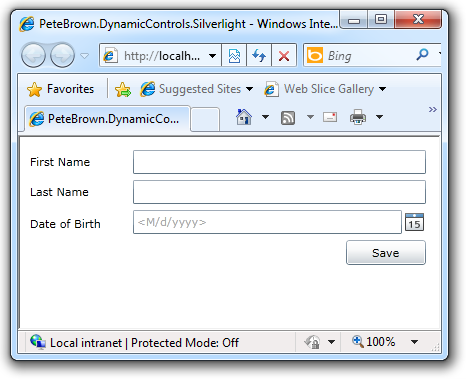
That markup creates a layout that looks like this in Silverlight:

image
Or, if you're using WPF, like this:
image
(note that you'll need to remove or remap the "sdk" prefix when using this XAML in WPF, as the date control is built-in)
Once you're familiar with working in XAML, you can easily modify the process to load the XAML at runtime to dynamically create controls.

Creating Controls at runtime using XAML strings

In Silverlight, this block of code in the code-behind creates the same controls at runtime by loading the XAML from a string using the System.Windows.Markup.XamlReader class. This class exposes a Load method which (in Silverlight) takes a well-formed and valid XAML string and returns back a visual tree
?
1
2
3
4
5
6
7
8
9
10
11
12
13
14
15
16
17
18
19
20
21
22
23
24
25
26
27
28
29
30
31
32
33
34
35
36
37
38
39
40
41
42
43
44
45
46
47
48
49
50
51
public MainPage()
{
    InitializeComponent();
 
    Loaded += new RoutedEventHandler(MainPage_Loaded);
}
 
void MainPage_Loaded(object sender, RoutedEventArgs e)
{
    CreateControls();
}
 
 
private void CreateControls()
{
    string xaml =
    "<Grid Margin='10' " +
        "xmlns:x='http://schemas.microsoft.com/winfx/2006/xaml' " +
        "<Grid.ColumnDefinitions>" +
            "<ColumnDefinition Width='100' />" +
            "<ColumnDefinition Width='*' />" +
        "</Grid.ColumnDefinitions>" +
 
        "<Grid.RowDefinitions>" +
            "<RowDefinition Height='Auto' />" +
            "<RowDefinition Height='Auto' />" +
            "<RowDefinition Height='Auto' />" +
            "<RowDefinition Height='*' />" +
        "</Grid.RowDefinitions>" +
 
        "<TextBlock Text='First Name' Height='19' Margin='0,7,31,4' />" +
        "<TextBox x:Name='FirstName' Margin='3' Grid.Row='0' Grid.Column='1' />" +
 
        "<TextBlock Text='Last Name' Margin='0,7,6,3' Grid.Row='1' Height='20' />" +
        "<TextBox x:Name='LastName' Margin='3' Grid.Row='1' Grid.Column='1' />" +
 
        "<TextBlock Text='Date of Birth' Grid.Row='2' Margin='0,9,0,0' Height='21' />" +
        "<sdk:DatePicker x:Name='DateOfBirth' Margin='3' Grid.Row='2' Grid.Column='1' />" +
 
        "<Button x:Name='SubmitChanges' Grid.Row='3' Grid.Column='3' " +
            "HorizontalAlignment='Right' VerticalAlignment='Top' " +
            "Margin='3' Width='80' Height='25' Content='Save' />" +
    "</Grid>";
 
 
    UIElement tree = (UIElement)XamlReader.Load(xaml);
 
    LayoutRoot.Children.Add(tree);
}
Note that I needed to add the namespace definitions directly in this XAML. A chunk of XAML loaded via XamlReader.Load must be completely self-contained and syntactically correct.
The WPF XamlReader.Load call is slightly different as it has no overload which would take a string. Instead, it takes an XmlReader as one form of parameter:
?
1
2
3
4
5
6
StringReader stringReader = new StringReader(xaml);
XmlReader xmlReader = XmlReader.Create(stringReader);
 
UIElement tree = (UIElement)XamlReader.Load(xmlReader);
 
LayoutRoot.Children.Add(tree);

This technique also works for loading chunks of XAML from a file on the local machine, or as the result of a database query. It's also helpful for enabling the use of constants (like the extended color set) that are recognized by XAML parser in Silverlight, but not from code.
The more typical approach to dynamically creating controls, however, is to simply use the CLR objects.

Creating Controls at runtime using Code and CLR Objects

Everything you do in XAML can also be done from code. XAML is a representation of CLR objects, rather than a markup language that abstracts the underlying objects. Creating controls from code tends to be more verbose than doing the same from XAML. However, it is a familiar approach for Windows Forms developers, and a great way to handle dynamic UI.
?
1
2
3
4
5
6
7
8
9
10
11
12
13
14
15
16
17
18
19
20
21
22
23
24
25
26
27
28
29
30
31
32
33
34
35
36
37
38
39
40
41
42
43
44
45
46
47
48
49
50
51
52
53
54
55
56
57
58
59
60
61
62
63
64
65
66
67
68
69
70
71
72
73
74
75
76
77
78
79
80
81
82
83
84
85
86
87
88
89
90
91
92
93
94
95
96
97
98
99
100
101
102
103
104
105
106
107
108
109
110
111
112
113
114
115
116
117
118
119
120
121
122
123
124
125
126
private void CreateControlsUsingObjects()
{
    // <Grid Margin="10">
    Grid rootGrid = new Grid();
    rootGrid.Margin = new Thickness(10.0);
             
    // <Grid.ColumnDefinitions>
    //   <ColumnDefinition Width="100" />
    //   <ColumnDefinition Width="*" />
    //</Grid.ColumnDefinitions>
 
    rootGrid.ColumnDefinitions.Add(
        new ColumnDefinition() { Width = new GridLength(100.0) });
    rootGrid.ColumnDefinitions.Add(
        new ColumnDefinition() { Width = new GridLength(1, GridUnitType.Star) });
 
    //<Grid.RowDefinitions>
    //  <RowDefinition Height="Auto" />
    //  <RowDefinition Height="Auto" />
    //  <RowDefinition Height="Auto" />
    //  <RowDefinition Height="*" />
    //</Grid.RowDefinitions>
 
    rootGrid.RowDefinitions.Add(
        new RowDefinition() { Height = GridLength.Auto });
    rootGrid.RowDefinitions.Add(
        new RowDefinition() { Height = GridLength.Auto });
    rootGrid.RowDefinitions.Add(
        new RowDefinition() { Height = GridLength.Auto });
    rootGrid.RowDefinitions.Add(
        new RowDefinition() { Height = new GridLength(1, GridUnitType.Star) });
 
    //<TextBlock Text="First Name"
    //           Height="19"
    //           Margin="0,7,31,4" />
 
    var firstNameLabel = CreateTextBlock("First Name", 19, new Thickness(0, 7, 31, 4), 0, 0);
    rootGrid.Children.Add(firstNameLabel);
 
    //<TextBox x:Name="FirstName"
    //         Margin="3"
    //         Grid.Row="0"
    //         Grid.Column="1" />
 
    var firstNameField = CreateTextBox(new Thickness(3), 0, 1);
    rootGrid.Children.Add(firstNameField);
 
    //<TextBlock Text="Last Name"
    //           Margin="0,7,6,3"
    //           Grid.Row="1"
    //           Height="20" />
 
    var lastNameLabel = CreateTextBlock("Last Name", 20, new Thickness(0, 7, 6, 3), 1, 0);
    rootGrid.Children.Add(lastNameLabel);
 
             
    //<TextBox x:Name="LastName"
    //         Margin="3"
    //         Grid.Row="1"
    //         Grid.Column="1" />
 
    var lastNameField = CreateTextBox(new Thickness(3), 1, 1);
    rootGrid.Children.Add(lastNameField);
 
 
    //<TextBlock Text="Date of Birth"
    //           Grid.Row="2"
    //           Margin="0,9,0,0"
    //           Height="21" />
 
    var dobLabel = CreateTextBlock("Date of Birth", 21, new Thickness(0, 9, 0, 0), 2, 0);
    rootGrid.Children.Add(dobLabel);
 
    //<DatePicker x:Name="DateOfBirth"
    //            Margin="3"
    //            Grid.Row="2"
    //            Grid.Column="1" />
 
    DatePicker picker = new DatePicker();
    picker.Margin = new Thickness(3);
    Grid.SetRow(picker, 2);
    Grid.SetColumn(picker, 1);
    rootGrid.Children.Add(picker);
 
    //<Button x:Name="SubmitChanges"
    //        Grid.Row="3"
    //        Grid.Column="3"
    //        HorizontalAlignment="Right"
    //        VerticalAlignment="Top"
    //        Margin="3"
    //        Width="80"
    //        Height="25"
    //        Content="Save" />
 
    Button button = new Button();
    button.HorizontalAlignment = HorizontalAlignment.Right;
    button.VerticalAlignment = VerticalAlignment.Top;
    button.Margin = new Thickness(3);
    button.Width = 80;
    button.Height = 25;
    button.Content = "Save";
    Grid.SetRow(button, 3);
    Grid.SetColumn(button, 1);
    rootGrid.Children.Add(button);
 
    LayoutRoot.Children.Add(rootGrid);
}
 
private TextBlock CreateTextBlock(string text, double height, Thickness margin, int row, int column)
{
    TextBlock tb = new TextBlock()
        { Text = text, Height = height, Margin = margin };
    Grid.SetColumn(tb, column);
    Grid.SetRow(tb, row);
 
    return tb;
}
 
private TextBox CreateTextBox(Thickness margin, int row, int column)
{
    TextBox tb = new TextBox() { Margin = margin };
    Grid.SetColumn(tb, column);
    Grid.SetRow(tb, row);
 
    return tb;
}
You'll see the code is only slightly more verbose when expanded out. The two helper functions help minimize that. In the code, I create the entire branch of the visual tree before I add it to the root. Doing this helps minimize layout cycles you'd otherwise have if you added each item individually to the root.
I tend to put any UI interaction inside the Loaded event. However, you could place this same code inside the constructor, after the InitializeComponent call. As your code gets more complex, and relies on other UI elements to be initialized and loaded, you'll want to be smart about which function you use.

Handling Events

If you want to handle events, like button clicks, you'd do that like any other .NET event handler:
?
1
2
3
4
5
6
7
8
9
10
11
12
{
    Button button = new Button();
    ...
    button.Click += new RoutedEventHandler(button_Click);
 
    LayoutRoot.Children.Add(rootGrid);
}
 
void button_Click(object sender, RoutedEventArgs e)
{
    ...
}
Creating controls from code doesn't mean you lose the valuable ability to data bind. In some cases, especially where the binding source is hard to reference from XAML, binding is easier in code.

Binding Dynamically Created Controls

We haven't used any binding yet, so we'll need to create a binding source. For that, I created a simple shared project that targets Silverlight 4. It's a Silverlight class library project and is used by both the WPF and Silverlight examples. Remember, to use it from WPF 4 (without any additions), you'll need to use a file reference to the compiled DLL, not a project reference.
Inside that project, I created a single ViewModel class named ExampleViewModel.
?
1
2
3
4
5
6
7
8
9
10
11
12
13
14
15
16
17
18
19
20
21
22
23
24
25
26
27
28
29
30
31
public class ExampleViewModel : INotifyPropertyChanged
{
    private string _lastName;
    public string LastName
    {
        get { return _lastName; }
        set { _lastName = value; NotifyPropertyChanged("LastName"); }
    }
 
    private string _firstName;
    public string FirstName
    {
        get { return _firstName; }
        set { _firstName = value; NotifyPropertyChanged("FirstName"); }
    }
 
    private DateTime _dateOfBirth;
    public DateTime DateOfBirth
    {
        get { return _dateOfBirth; }
        set { _dateOfBirth = value; NotifyPropertyChanged("DateOfBirth"); }
    }
 
    public event PropertyChangedEventHandler PropertyChanged;
 
    protected void NotifyPropertyChanged(string propertyName)
    {
        if (PropertyChanged != null)
            PropertyChanged(this, new PropertyChangedEventArgs(propertyName));
    }
}
Inside the code-behind (this is a demo, after all) of the Window (or Page), initialize the viewmodel class:
?
1
2
3
4
5
6
7
8
9
10
11
12
private ExampleViewModel _vm = new ExampleViewModel();
 
public MainWindow()
{
    _vm.LastName = "Brown";
    _vm.FirstName = "Pete";
    _vm.DateOfBirth = DateTime.Parse("Jan 1, 1910");
 
    InitializeComponent();
 
    ...
}

Once that is done, we can create an example binding. I'm going to use the First Name TextBox and set up two-way binding with the FirstName property of the ExampleViewModel instance.

?
1
2
3
4
5
6
7
8
var firstNameField = CreateTextBox(new Thickness(3), 0, 1);
Binding firstNameBinding = new Binding();
firstNameBinding.Source = _vm;
firstNameBinding.Path = new PropertyPath("FirstName");
firstNameBinding.Mode = BindingMode.TwoWay;
firstNameField.SetBinding(TextBox.TextProperty, firstNameBinding);         
 
rootGrid.Children.Add(firstNameField);
The same approach to expressing binding also works in XAML. It's just that we have a binding markup extension that makes the process easier.
One thing that tripped me up in this example was I passed in TextBlock.TextProperty to the SetBinding call. That's a valid dependency property, so it compiles just fine. In WPF, that fails silently, even when you have verbose binding debugging turned on. In Silverlight, it throws a catastrophic error (without any additional information). That catastrophic error made me look more closely at the call, ultimately leading to the fix.
To bind controls added using dynamically-loaded XAML, you'll need to provide a valid Name to each control you want to reference, then use FindName after loading to get a reference to the control. From there, you can using the Binding object and SetBinding method. Of course, you can also embed the binding statements directly in the XAML if you wish to do a little string manipulation.

Summary

So, we've seen that there are three different ways you can display controls in Silverlight and WPF.
  • Use the design surface / XAML Editor / Blend and create them prior to compiling
  • Load XAML at runtime
  • Use CLR Objects at runtime
Each way is useful in different scenarios, and also has different performance characteristics. XAML parsing is surprisingly efficient and the XAML can be stored in a large text field in a single row in a database or as a loose file on the file system, for example.


Source Code and Related Media

Download /media/73013/petebrown.dynamiccontrols.zip

Saturday, 28 July 2012

SQL FOREIGN KEY CONSTRAINT Syntax


ALTER TABLE ADD FOREIGN KEY Constraint Introduction

Foreign Key constraint is used to ensure that a value in the Foreign Key column exists also in Primary Key field in Parent Table. For example if you have new product with code ABC123 than you should not be able to sell it until it entered on the system in Product table (Parent table). Foreign Key constraint check if value 'ABC123' exists in Parent Table in Primary Key and if it does not then it will fail the operations (insert or update).

FOREIGN KEY constraint  syntax:
ALTER TABLE  TableName
ADD CONSTRAINT FK_ConstraintName
FOREIGN KEY  (ForeignKey_ColumnName)
REFERENCES PrimaryKey_TableName (PrimaryKey_ColumnName)
Foreign Key Constraints are added in tables where FK column exists (Child Table) using ALTER TABLE ADD CONSTRAINT. You need to specify your column using FOREIGN KEY and related to table that contains Primary Key for this Foreign Key using REFERENCES and specifying PirmaryKey Table Name (Parent Table) and Pirmary Key Column.

In the Object Explorer I open AdventureWorksDW2012 database then I expand Tables folder and find table which I will use to add  FOREIGN KEY constraint. In this case it is dbo.FactInternetSales table. 


ALTER TABLE ADD FOREIGN KEY Constraint Example

I open new query and type my code to create foreign key constraint (see below) and run my query.

You can see that I add Foreign Key to FactInternetSales by using ALTER TABLE on this table. Add constraint name and specify field name using FOREIGN KEY (CustomerKey) and then use REFERENCE to say that CustomerKey is related to CustomerKey Primary key in DimCustomer
In the Object Explorer, Keys folder (NOT Constraints folder) I can see that new foreign key constraint is added.


I hope that help